
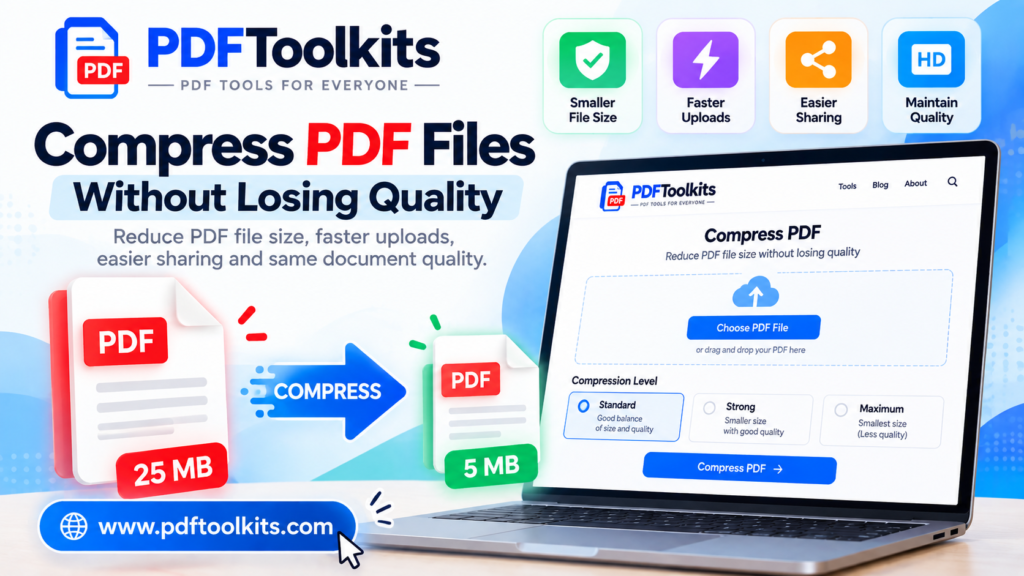
PDF files are convenient for sharing, storing, printing, and submitting documents. However, PDF files can sometimes become surprisingly large, especially when they contain high-resolution images, scanned pages, graphics, or other embedded content.
A large PDF can create several problems.
It may take longer to upload, consume more storage space, be difficult to send by email, or exceed the file-size limit of an online application or submission portal.
Fortunately, you can often solve this problem by compressing the PDF.
In this guide, we’ll explain how to compress a PDF, why PDF files become large, how PDF compression works, and how to reduce PDF file size while maintaining a useful level of document quality.
What Does It Mean to Compress a PDF?
Compressing a PDF means reducing the file size of a PDF document while attempting to preserve its important content and visual quality.
For example, suppose you have a PDF that is:
25 MB
After compression, it might become:
8 MB
The exact reduction depends on the contents of the original PDF and the compression method used.
A text-only PDF may already be relatively small, while a scanned document containing hundreds of high-resolution images may have much more potential for compression.
Why Do PDF Files Become So Large?
There isn’t one single reason why a PDF becomes large.
Several factors can contribute to its file size.
1. High-resolution images
Images are one of the most common reasons for large PDF files.
A document containing multiple high-resolution photographs can quickly become much larger than a document containing only text.
2. Scanned documents
Scanned PDFs can be particularly large because each page may essentially contain a full-page image.
For example, a 100-page scanned document may contain 100 large images.
3. Uncompressed or lightly compressed images
The way images are stored inside a PDF can have a significant effect on the overall file size.
4. Embedded fonts
Some PDFs contain embedded fonts and font information that contributes to the document size.
5. Complex graphics
Illustrations, charts, vector graphics, and other graphical elements can increase PDF size.
6. Large amounts of embedded content
Some PDFs may contain additional objects, metadata, attachments, forms, or other elements that increase their size.
Why Should You Compress a PDF?
Reducing PDF file size can be useful in many situations.
Faster uploads
A smaller PDF generally requires less data to upload.
This can be particularly useful when submitting documents to websites with limited upload sizes.
Easier sharing
Large files can be inconvenient to send through email or messaging platforms.
A smaller PDF is often easier to share.
Less storage space
Compressing documents can reduce the amount of storage required for large collections of PDF files.
Easier online submissions
Many websites have maximum file-size limits.
For example, an application portal might accept PDFs only below a specified size.
If your document exceeds the limit, compression can help bring the file within the allowed range.
Faster downloads
Smaller files generally require less data to download.
This can make document sharing more convenient for recipients.
How to Compress a PDF Online
One of the simplest approaches is to use an online PDF compression tool.
With a browser-based PDF compressor, the general process is:
Upload → Compress → Download
Here’s how it works.
Step 1: Select Your PDF
Start by choosing the PDF document that you want to compress.
Before uploading, check the original file size.
For example:
Original PDF: 18.5 MB
Knowing the original size makes it easier to evaluate the result after compression.
Step 2: Upload the PDF
Upload your document to the PDF compression tool.
Depending on the tool, you may also be able to select different compression levels.
For example, a tool may offer options such as:
- Standard compression
- Strong compression
- Maximum compression
The exact options depend on the PDF tool you are using.
Step 3: Choose a Compression Level
If the tool provides multiple compression levels, select the one appropriate for your needs.
Standard Compression
Useful when you want to reduce file size while keeping a good balance between size and quality.
Strong Compression
Useful when you need a significantly smaller PDF and can accept some reduction in image quality.
Maximum Compression
Useful when achieving the smallest possible file size is more important than maintaining the original image quality.
The best setting depends on the purpose of your document.
Step 4: Compress the PDF
Start the compression process.
The PDF processor analyzes the document and applies appropriate compression techniques.
The processing time can depend on the size and complexity of the PDF.
Step 5: Download and Check the Result
After compression, download the resulting PDF.
Don’t immediately delete the original file.
First, open the compressed PDF and check:
- Text readability
- Images
- Page layout
- Charts
- Tables
- Page count
- Overall appearance
If the quality is acceptable, you can use the compressed version for sharing or uploading.
Compress PDF Without Losing Quality: Is It Possible?
This is one of the most common questions about PDF compression.
The answer is: sometimes, but there is a trade-off.
If a PDF contains information that can be optimized without visibly affecting the document, its file size may be reduced while maintaining very similar quality.
However, aggressive compression of image-heavy documents can reduce image resolution or visual quality.
For this reason, there isn’t one compression setting that is ideal for every PDF.
A research paper containing mostly text may respond very differently to compression than a photo-heavy brochure.
Lossless vs Lossy Compression
Understanding the difference between lossless and lossy compression helps explain why PDF compression can affect quality.
Lossless compression
Lossless compression reduces file size without permanently removing information.
The original information can theoretically be reconstructed from the compressed data.
This is useful when preserving the exact underlying data is important.
Lossy compression
Lossy compression achieves greater file-size reductions by removing some information.
In image-heavy PDFs, this may involve reducing image resolution or quality.
The result can be a much smaller file, but excessive compression may become visually noticeable.
Which Compression Level Should You Choose?
The right compression level depends on what you’re doing with the PDF.
| Purpose | Suggested Approach |
|---|---|
| Academic assignment | Standard |
| Research paper | Standard |
| Business report | Standard |
| Email attachment | Standard or Strong |
| Online application | Strong if necessary |
| Large scanned document | Strong or Maximum |
| Image-heavy PDF | Test quality after compression |
| Archival copy | Preserve the original |
These are general recommendations rather than strict rules.
If quality is important, always keep an original copy before applying aggressive compression.
How to Reduce PDF Size for Online Submission
Many online forms and application portals specify a maximum file size.
For example, a website might require:
PDF must be smaller than 5 MB.
If your document is 12 MB, you need to reduce its size before uploading it.
A practical workflow is:
Check file size → Compress PDF → Check resulting size → Review quality → Upload
If the first compression attempt isn’t enough, you may need a stronger compression setting.
However, don’t compress repeatedly without checking the result. Repeated processing of already compressed images can sometimes reduce visual quality unnecessarily.
How to Compress a Scanned PDF
Scanned PDFs often have significant compression potential.
This is because every scanned page may contain a large image.
For example:
100-page scanned PDF → large file size
The final size depends on factors such as:
- Scanner resolution
- Page dimensions
- Image format
- Color depth
- Number of pages
- Existing compression
If the document is intended primarily for reading rather than high-quality printing, stronger compression may be appropriate.
However, documents containing small text, diagrams, signatures, or detailed figures should be checked carefully after compression.
How to Compress a PDF on a Phone
You don’t always need a desktop computer to reduce PDF file size.
If your PDF compression tool works through a mobile browser, you can upload the document directly from your phone and download the compressed version.
A typical mobile workflow is:
- Open the PDF compressor in your browser.
- Select the PDF from your device.
- Choose the appropriate compression level.
- Start compression.
- Download the resulting PDF.
- Open the file and check its quality.
This can be particularly useful when you need to submit a document quickly from a smartphone.
How to Reduce PDF Size Without Making Text Blurry
Text in a PDF should generally remain readable after compression.
If text appears blurry, the problem may be related to how the PDF was created or how image-based pages were compressed.
This is particularly important for scanned documents.
Before submitting a compressed PDF, zoom into several pages and check:
- Small text
- Footnotes
- Tables
- Mathematical equations
- Labels
- Signatures
- References
A document that looks fine at normal zoom may reveal quality problems when examined closely.
Does Compressing a PDF Delete Pages?
Normally, PDF compression is intended to reduce the file size while keeping the document’s pages and content.
However, you should always verify the final document.
Check that:
- The page count is correct.
- All important pages are present.
- Images are visible.
- Text is readable.
- Tables and charts are intact.
Never rely solely on the file size to determine whether the result is suitable.
Does PDF Compression Change the File Format?
A compressed PDF remains a PDF document.
The purpose of compression is to reduce the amount of data required to store the document, rather than convert it into another file format.
For example:
Original: PDF
Compressed: PDF
The file extension normally remains .pdf.
What Is the Difference Between Compressing and Splitting a PDF?
These are two completely different PDF operations.
Compress PDF
Reduces the file size of a PDF.
Example:
20 MB PDF → 7 MB PDF
Split PDF
Divides one PDF into multiple documents or extracts selected pages.
Example:
50-page PDF → 10-page PDF + 20-page PDF + 20-page PDF
Sometimes you may use both operations.
For example:
Split PDF → Remove unnecessary pages → Compress PDF
This can be useful when only part of a large document is required.
What Is the Difference Between Compressing and Merging a PDF?
Merging and compression also solve different problems.
Merge PDF
Combines multiple PDF files into one.
PDF A + PDF B + PDF C → One PDF
Compress PDF
Reduces the size of a PDF.
15 MB PDF → Smaller PDF
You can even use both tools together.
For example:
Merge multiple PDFs → Compress the final PDF
This is useful when you need to submit several documents as one file but the resulting document is too large.
Tips for Reducing PDF File Size
Here are some practical tips for keeping PDFs manageable.
Keep high-resolution images only when necessary
If your document doesn’t require print-quality photographs, extremely high-resolution images may be unnecessary.
Remove unnecessary pages
If you don’t need certain pages, remove them before creating the final document.
Keep the original file
Always preserve an original copy of important documents before aggressive compression.
Check the final quality
Don’t choose compression based solely on file size.
A 90% reduction isn’t useful if the resulting document is unreadable.
Choose compression based on purpose
A PDF for an online form may not need the same quality as a document intended for professional printing.
When Should You Avoid Strong Compression?
Strong compression isn’t always the best choice.
You should be cautious with aggressive compression when your PDF contains:
- High-quality photographs
- Detailed scientific figures
- Technical drawings
- Fine charts
- Small text
- Medical or technical illustrations
- Documents intended for professional printing
In these cases, preserving readability and visual detail may be more important than achieving the smallest possible file size.
How PDFToolkits Can Help
PDFToolkits provides online PDF utilities designed to make everyday document tasks easier.
When you need to reduce the size of a PDF, the Compress PDF tool can be used to process your document through a simple browser-based workflow.
The basic process is straightforward:
Upload your PDF → Select compression → Compress → Download
You can then check the resulting file size and review the document before using it.
For more information about PDFToolkits and its collection of online PDF utilities, you can also read our introduction to PDFToolkits: Free Online PDF Tools for Everyday Document Tasks.
Frequently Asked Questions
How do I compress a PDF?
Upload your PDF to a PDF compression tool, choose an appropriate compression level if available, process the document, and download the compressed PDF.
How can I reduce PDF file size?
You can reduce PDF file size by using PDF compression techniques that optimize images and other document data. The amount of reduction depends on the original PDF.
Can I compress a PDF without losing quality?
In many cases, you can significantly reduce file size while maintaining good visual quality. However, aggressive compression may reduce image quality, particularly in image-heavy or scanned PDFs.
What is the best PDF compression level?
There is no universal best setting. Standard compression is often a good starting point, while stronger compression may be appropriate when you have a strict file-size limit.
Can I compress a PDF on my phone?
Yes. Browser-based PDF compression tools can be accessed from compatible smartphones, allowing you to upload and compress documents without necessarily using a computer.
Why is my PDF so large?
Large PDF files are often caused by high-resolution images, scanned pages, embedded graphics, fonts, or other document elements.
Does compressing a PDF reduce the number of pages?
Normally, compression reduces the amount of data stored in the document rather than removing pages. Always check the final page count after processing.
Should I keep the original PDF?
Yes. For important documents, keeping the original file is recommended so you always have an uncompressed copy.
Can I compress a PDF before submitting it online?
Yes. Compressing a PDF can be useful when an online application or submission portal has a maximum file-size requirement.
Final Thoughts
A large PDF doesn’t always need to remain large.
Whether you’re preparing a research paper, submitting an application, sending a business document, or sharing a scanned file, compressing a PDF can make the document easier to upload, store, share, and download.
The key is to find the right balance between file size and document quality.
For most everyday documents, start with moderate compression and review the resulting PDF before using it. If the file is still too large, you can consider a stronger compression level.
And when you need a simple way to reduce PDF file size, explore the Compress PDF tool on PDFToolkits.
Smaller PDF. Easier sharing. Simpler document management.